
UPDATED: August, 2020
If you’re just poking around trying to figure out why everyone on Twitter is talking about this “Roam Research” thing, sit back; because I am a HUGE fan of it, I think the whole world should be using it, and I love explaining things to people.
If you’re already familiar with Roam, then welcome to the #RoamCult Tribe! I encourage you to skim through this article because I’ve been using Roam 8-10 hours daily for almost 9 months. And in those 2,000+ hours, I’ve learned a trick or two that I’d love to pass along to help make Roam work better for you too. DM me on Twitter or leave a comment below if you want to share your tips with me!
So, what is Roam Research? If you don’t know, at it’s very roots, Roam is a database for information that can be hyperlinked like a wiki. Wikipedia would be an example.
It comes out of an “academic” background so when you first look at it, it looks a bit “bare bones” and a lot of online content you find about it explains how to write the perfect doctoral dissertation. I’m kidding. (Mostly.)
But seriously, it’s as big as you make it! You could keep track of items on a bucket list or plan the intricacies of your next vacation. You could keep track of notes from weekly meetings or plan a conference. If you like religion or philosophy, you won’t believe the connections you can make between people from the past. Any type of writer or entrepreneur is guaranteed to love it!
How did I become so passionate about it?
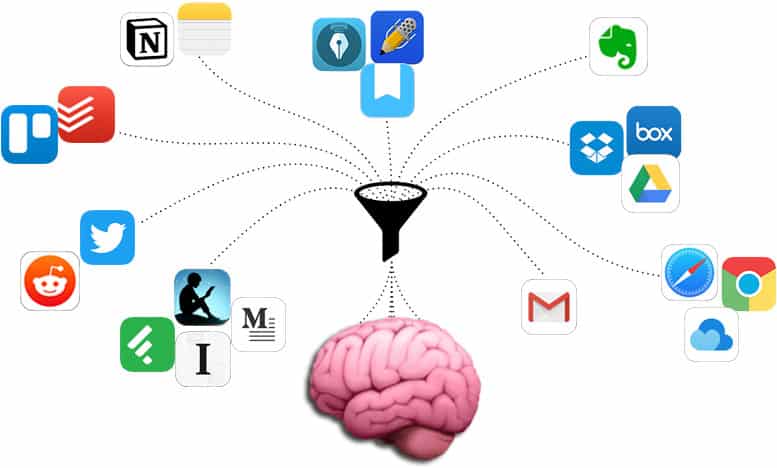
For several years, I was “annoyed” by having all my digital information spread over many different applications; sometimes overlapping or incomplete. The majority of it was divided between my MacOS and thousands of Evernotes. A lot of lists/outlines were in Workflowy. Projects and goals I organized in Todoist. And, more and more of it was in the cloud with applications like Google Drive or one of my favorite utilities, CloudApp. And if you’re using social media like me, you’re probably saving tweets and bookmarks, and subscribe to Facebook groups or even professional forums.
I often found myself saying, “I saved something about that…somewhere… “ And could never find it in the 20 places I could have been.
Here’s what that looks like:
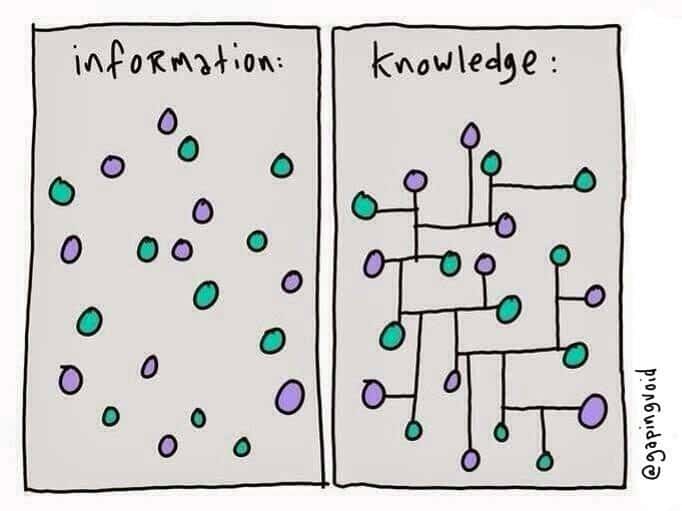
I randomly stumbled across Roam about nine months ago while doing some quick research on it to see why so many smart people were fawning over it—you know how those academic types are!  The Home page drew me in. I wasn’t sure how it worked but I could tell that words were linked together from multiple locations.
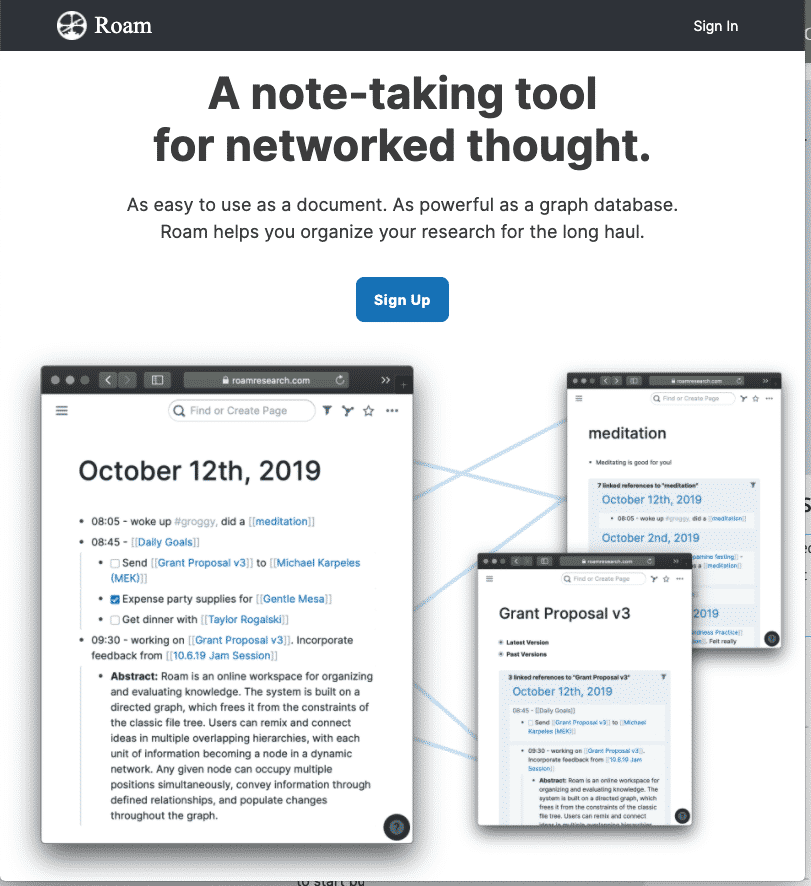
It felt a little hard at first to get over the first hurdle. But after I got 5-10 key commands memorized, I had that feeling—do you know it?—after you’ve stretched your arms & legs and are about to go running: “Let’s go!”
What i love about Roam is that it feels like it’s “built-for” people like me  where thoughts lead to other ideas, then other thoughts, and then a business idea about how those two thoughts relate to a couple other things you I thinking about last week, but don’t have the time to think much more about that business idea because the article you started 3 hours ago has to be finished by the end of the day today! #squirrel
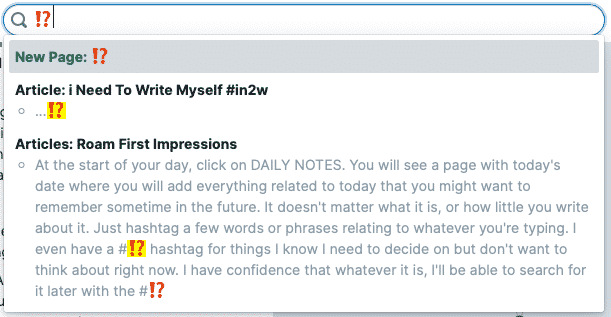
Oh, a favorite little thing of mine, you can search for emojis you’ve added to headlines or where ever! 
It frees me up to organize my thoughts, by assigning tags, as fast as i can type. I really don’t even use the mouse much.
I’m sure studies show how many things, on average, I learned yesterday that I’ve already forgotten today…let alone something I recorded a month or two ago. With Roam, I can “go off” and type a couple thoughts on something random and easily return back to finish what I was doing.
You hit 2nd gear once you have 4-5 “master” topics/categories decided and can start linking things together. One of those categories will undoubtedly be a “Daily Notes” page because even if you don’t know where you want to put something, you can just plop it into Roam’s default DAILY NOTES page. Because of that one thing alone, I have started an actual daily journal and every morning that I wake up, I can’t wait to start putting my thoughts into Roam. No one is paying me to say that, btw.
The higher gears come as you start learning more advanced key commands; like queries and the miracle that is the SIDEBAR. It’s at this point that you get hooked.
For me, staring at my first empty Roam database was like opening a blank journal for the first time: I wasn’t sure what to put in it…until I start dumping my brain into it!
Roam Research has a basic set of functions: multi-level lines called blocks, like Notion (and Workflowy) you add additional blocks by typing the enter key. You can use the arrow keys to navigate around or click where you want to edit.
Being able to move lightly and fast around a document is great for brainstorming or taking notes in an online meeting/presentation/podcast/etc. It allows you to keep your thoughts together while jumping around and changing focus.
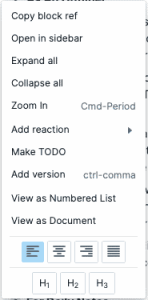
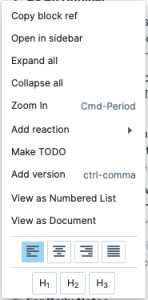
 TIP: If you right-click on an actual bullet point, you get a contextual menu of available options. This is not immediately evident like the way it is in Workflowy with their three dots system.
From here you can adjust the alignment of the text, set a header style, get a hyperlink directly to that “block”, create a task, add an emoji and add alternate versions of the same block, add a version of the same text, collapse or expand all bullets, and change from a bulleted to a numbered list.
Your screen is broken up into three columns: 1.) left menu; 2.) main focus; 3.) right sidebar. You can move or copy individual blocks from the main focus column to the sidebar and back by shift-clicking or simply dragging the bullet. To put something in the Left menu column, click the star  icon at the top right of the page.
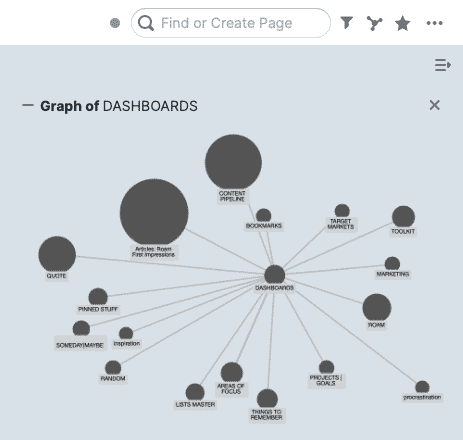
Roam’s super-power is harnessed through words/symbols—via clickable links you create—connecting disparate reaches of the database in unexpected ways. (See “Graph of Dashboards” image above.)
In other words, Bidirectional links — essentially, #hyperlinks — are accomplished by surrounding a word or phrase with two brackets, [[like this]].
Don’t dread the brackets. They’re right next to your little pinky and Roam is fast! When you type one left bracket, Roam auto-creates the right bracket and anything you type will be inside both brackets. Type one key two times and you’ve got this: [[]]
Type two left brackets and you automatically get two right brackets. It’s the fastest way possible to create a link to something else. It works for parenthesis and braces as well!
 TIP: If you type command-K, you can quickly create an external link. The format for this kind of link is: []()
[whatever you want to call the link](http://the-link-goes-here.co)
Roam isn’t just a bullet-point-outliner like Workflowy. It’s designed to adapt to its surroundings.
At the start of your day, click on DAILY NOTES. You will see a page with today’s date where you will add everything related to today that you might want to remember sometime in the future. It doesn’t matter what it is, or how little you write about it. Just hashtag a few words or phrases relating to whatever you’re typing.
I even have a # hashtag for things I know I need to decide on but don’t want to think about right now. I have confidence that whatever it is, I’ll be able to search for it later with the #
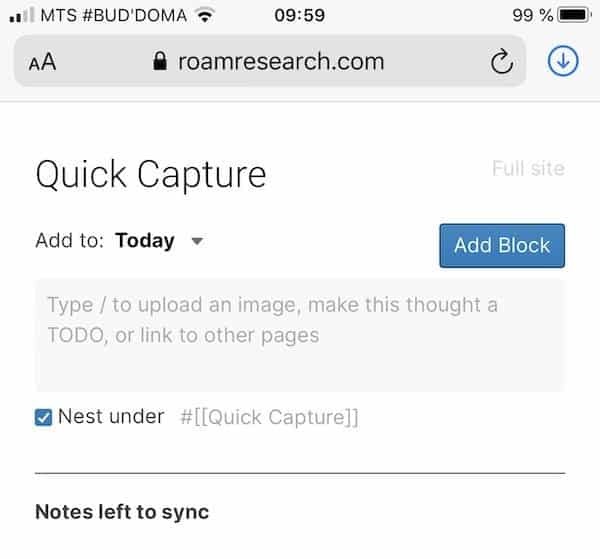

When I wrote this article, there weren’t tons of options for formatting like you would have with a word processor. But, I can assure you, the limitations can be liberating and the restrictions can force you to be a little more creative and thoughtful with your words. For me, that’s a plus.
Not to mention you could/can use emojis like a personal hieroglyphics language of your own!
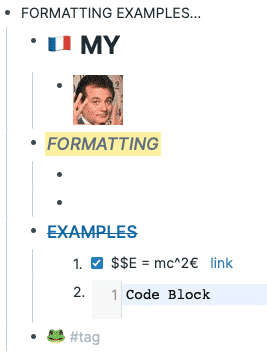
Here, I played around a little to show you some of the the most basic formatting options 
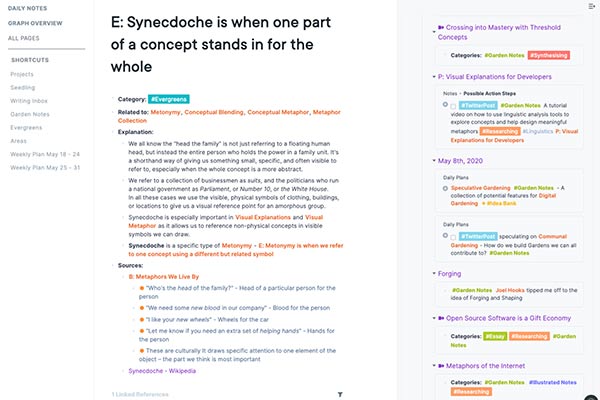
If you’ve read this far, or even jumped here directly, I should tell you that a quick and easy way to see how Roam can be used is to take a look at their “White Paper“.
Don’t worry, you don’t have to actually read it—although it is EXTREMELY interesting—just start looking at it and clicking on things…like you would on Wikipedia.
 Did you know, you can change the skin of your Wikipedia Home page?
Even if you start playing around with Roam for only an hour or so every day—adding in chunks of data or just journaling a few days a week—I believe you’ll start thinking of ways you could use it as a way to connect information together to improve your life and create a “second brain.”

If you want to keep learning about Roam Research with me, type in your email address here and join my tribe.